





























How to repost from instagram to google business account?

(Then you will not need to keep creating the content.)
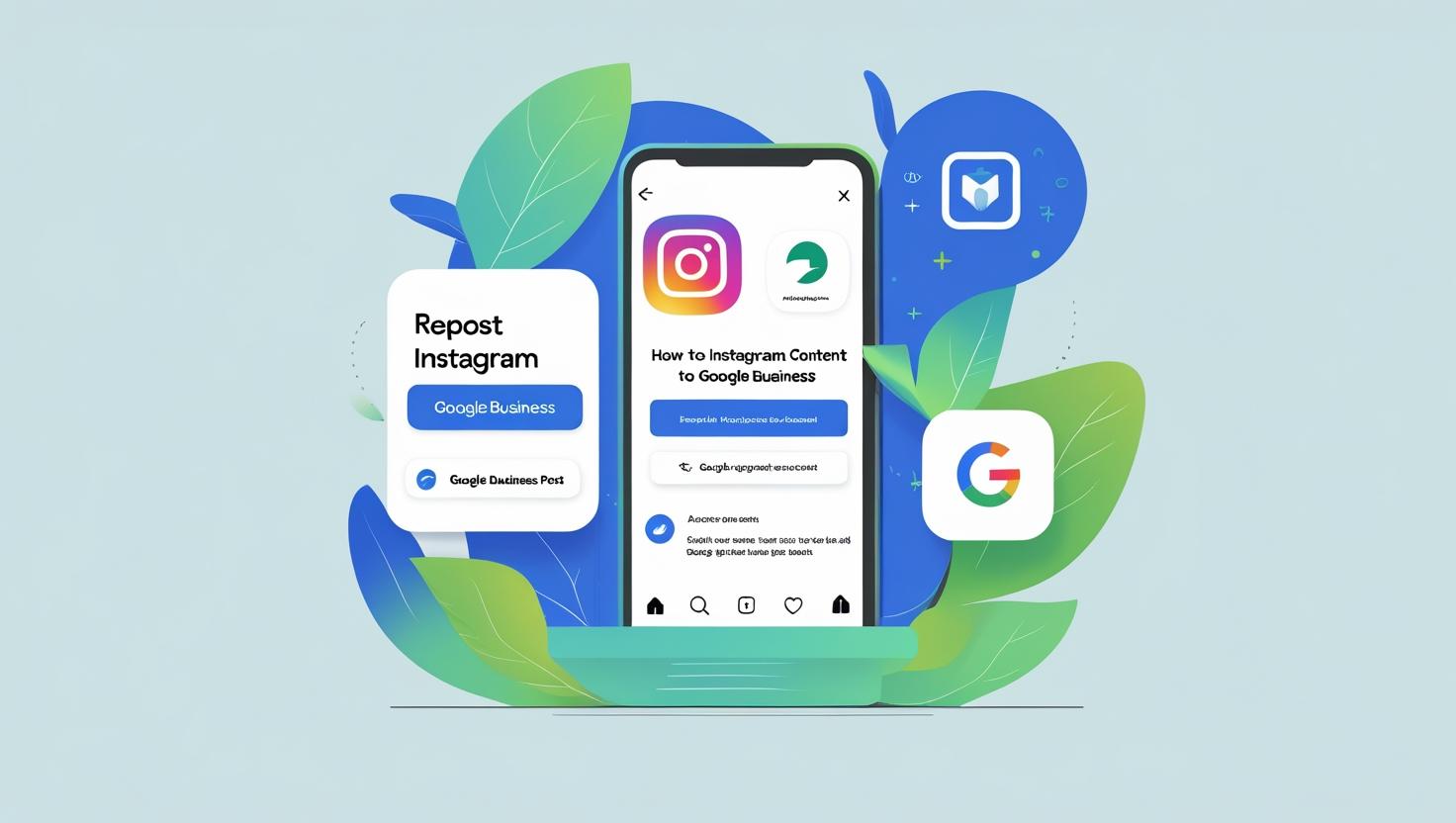
How to Share Instagram Posts on Google Business Profile: An Effortless Strategy for Entrepreneurs/For the Business Account.
Managing content for your Google Business Profile is helpful for visibility and adds to your reputation, especially for a local business. However, we know that generating content for every platform can be backbreaking.
If you’ve been actively sharing content on Instagram, it can be used to update your Google Business Profile. This will boost your visibility in Google without you having to do any extra effort; that’s amazing, nah?
What Benefits Are Available If Google Is Updated Using Instagram Posts?
Your Google Business Profile is likely to show up whenever someone searches for your business, especially in your local area. Keeping posts updated can:
- Boost engagement and trust metrics
- Boost local SEO rank
- Aid in the promotion of offers, updates, or events
- You will not need to make new content. Instead, you can recycle Instagram posts, as it always produces great results.
- Explanations: Google Business Profile Update Using Instagram Content.
This is a template that you can create and follow every time:
- Find a Relevant Instagram Post
Think of Google as a billboard. Therefore, start by selecting a post that tells a story or a post that contains visuals and is promotional. A few examples that work well are
- Photos or videos of products
- Announcements
- Special offers
- Behind-the-scenes clips
Keep a note of the original caption or call to action in case you want to reuse it.
- Instagram Content Download
In order to repost, it is necessary to have the photo or video stored locally.
What I use: An online tool like igram.io or any other of its kind (there are plenty). You just need to enter the Instagram link to the post and download the image or video in high-quality resolution.
Quick video retrieval tip: Ensure it is under 30 seconds and 75 MB, as upload limits exist.
- Open Google Business Profile
- Navigate to business.google.com using your preferred browser.
- Using the email with a business-registered Google account, sign in.
- Choose the profile of your business.
- Go to the “Posts” section or simply “Add Update” to update your profile.
- Upload the Media
Inside your profile:
- Click on the photo or video button (based on what you saved) to add the file.
- Upload the file you got from Instagram.
- Double check the preview of the post is showing it without cropping or resolution problems.
- Put in Your CTA and Caption
- Now you can insert your message. Here’s what you can do:
- Use your caption on Instagram and reuse it here.
- Or think about your caption for Google and consider the local people.
Here’s what I personally include:
- A brief headline with a compelling offer.
- A basic call to action-“Order “online,” “Call now,” “Visit us.”
- A pertinent link if the format of the post allows it.
Tip: “What’s New,” “Offer,” or “Event” are some options provided by google. Use the one which fits your content the best.
- Final Checks & Publish
- While checking to “Publish” option, make sure that you have already completed the following tasks:
- Check the video and image one last time for accuracy.
- Check the caption also for any typos or links that do not work.
- Check the business profile for preview.
If all these check, proceed to publish your post.

I’ve Learned Along the Way
- Be regular: Maintaining the business profile updated like, once or twice weekly, makes a profile active.
- Add variety: Use pictures and videos alternately to keep the content interesting.
- Check metrics: Visit your profile dashboard to check the metrics.
Bulk content creation: Use a bulk approach to content creation by downloading and preparing multiple Instagram posts, and schedule them for automatic posting.
Caption formats: I often employ the same caption format that incorporates a hook, value, and a CTA. It helps save time.
Issues (Video and Image Upload Issues)
- Videos are not able to upload. What can you do about it? You can recheck the format (Mp4/MOV) , size, and length.
- If the Images looked cropped – try to resize again before uploading (best one is square).
- If you are able to find the right account- check weather you’re logged in with the correct Gmail.
- If the link is missing – make sure to select the CTA option if available.
Final Thoughts
This has become one of the simplest ways I stay active on Google without burning out on content creation, and it keeps your brand looking active without exhausting you. Sometimes it’s smart work that can make an image for the brand.
You can check our youtube channel, and also check more blogs.
Related Posts

Snapchat Trolls Meta with Spotlight Name Change Prank